Title: TryonX – AI Virtual Try-On for WooCommerce
Author: WPXERO
Published: 14 setembro, 2025
Last modified: 10 outubro, 2026
---
Pesquisar plugins
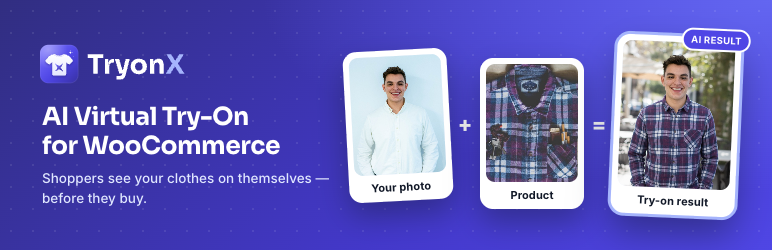

# TryonX – AI Virtual Try-On for WooCommerce
Por [WPXERO](https://profiles.wordpress.org/wpxero/)
[Baixar](https://downloads.wordpress.org/plugin/tryonx.1.3.0.zip)
* [Detalhes](https://br.wordpress.org/plugins/tryonx/#description)
* [Avaliações](https://br.wordpress.org/plugins/tryonx/#reviews)
* [Instalação](https://br.wordpress.org/plugins/tryonx/#installation)
* [Desenvolvimento](https://br.wordpress.org/plugins/tryonx/#developers)
[Suporte](https://wordpress.org/support/plugin/tryonx/)
## Descrição
**Turn your WooCommerce store into an AI fitting room.**
TryonX adds a **“Try On”** button to product pages so customers upload a photo and
instantly see how your apparel looks on them — powered by **Google Gemini 2.5 Flash
Image AI**. No app. No custom theme rebuild. Install, connect your API key, and
start offering **virtual try-on for WooCommerce** in minutes.
Shoppers buy with confidence. You sell more. Returns drop. That is the promise of**
AI try-on for online fashion** — and TryonX brings it to WordPress stores of every
size.
#### Why WooCommerce stores install TryonX
* **Higher conversion** — Customers who visualize a fit are more likely to add
to cart.
* **Fewer “will it fit?” doubts** — Answer the #1 question in fashion e-commerce
before checkout.
* **Lower return rates** — Better expectations mean fewer size and style surprises.
* **Shareable moments** — Results can be shared on social media; your products
get organic reach.
* **Works on mobile** — Most fashion traffic is mobile; TryonX is built mobile-
first.
* **Analytics built in** — See which products get the most try-ons and measure
engagement.
#### Who is this plugin for?
* **Fashion & apparel** WooCommerce stores (tees, hoodies, dresses, jackets, activewear)
* **Boutiques & DTC brands** that want a premium, interactive product experience
* **Agencies** building modern WooCommerce sites with Elementor, Divi, or block
themes
* **Merchants** ready to differentiate with **AI-powered virtual fitting** without
enterprise pricing
#### Features: AI virtual try-on for WooCommerce product pages
* **AI virtual try-on** — Photorealistic garment visualization with Google Gemini
2.5 Flash Image
* **One photo, many products** — Session memory: upload once, then try other products
for 24 hours
* **Try more products** — A grid of similar items from the same category that shoppers
can test without re-uploading
* **Before / after compare** — Slider and side-by-side views of the shopper’s photo
and the try-on result
* **Garment image picker** — Shoppers choose which product photo (featured, gallery,
or your custom garment image) is sent to the AI
* **Variable products** — One selector per attribute (Size, Color, …) so the result
screen adds the right variation to the cart
* **Add to cart from results** — Close the loop from try-on to purchase in one
click
* **Download and share** — Shoppers can save the result or share it to Facebook,
X, or Pinterest
* **Per-product controls** — Enable or disable try-on per product and set a dedicated
flat-lay garment image
* **Shortcode** — `[tryonx]` or `[tryonx product_id="123"]` for landing pages and
page builders
* **Privacy controls** — Consent checkbox, shopper “Remove my photo” button, automatic
deletion of generated images, optional login-only mode, IP anonymization, and
WordPress privacy-tool support
* **Cost controls** — Per-shopper hourly limit plus a store-wide daily cap on generated
images
* **Analytics dashboard** — Try-on counts, success rate, add-to-carts, orders and
revenue from tried-on products, failure reasons, top products, daily chart, and
a WordPress dashboard widget
* **Shop & category pages** — Optional Try On button under each product in product
grids
* **Easy setup** — Guided checklist, one-click API connection test, “all products”
switch, bulk enable/disable from the Products list
* **Cache-friendly** — No cookie until a shopper uses try-on, and nothing visitor-
specific in the page HTML
* **Theme-friendly** — Works with Hello Elementor, Divi, and block themes
* **Developer hooks** — Filters and actions for custom integrations
#### Accessibility
* The try-on window is announced to screen readers as a modal dialog with a title,
and closes with the **Escape** key.
* Upload, Generate, Compare, Download, Share, and Add to cart are native buttons
and links that can be reached with the **Tab** key. Focus moves into the window
when it opens, stays inside it, and returns to the Try On button when it closes.
* Product, saved-photo, and before/after images carry text alternatives.
* Errors and status are shown as text messages, not by color alone.
* Every label, button, and message is translatable (text domain `tryonx`).
#### How virtual try-on works (3 steps)
1. **Shopper uploads a photo** on your WooCommerce product page (JPEG, PNG, or WebP—
large phone photos are resized in the browser automatically).
2. **TryonX sends the photo + product image to Gemini AI** and generates a realistic
try-on result.
3. **Customer compares, downloads, shares, or adds to cart** — then tries more products
without re-uploading.
#### Setup in under 5 minutes
1. Install TryonX and activate WooCommerce.
2. Go to **WooCommerce Virtual Try-On**.
3. Paste your [Google AI Studio](https://aistudio.google.com/app/api-keys) API key.
4. Click **Test connection**, then turn on **All products** or select clothing categories(
or enable per product).
5. Publish — the **Try On** button appears on eligible products.
#### Requirements
* WordPress 5.6+ (tested up to 7.1) and **WooCommerce** 5.0+ (tested up to 10.8,
required)
* PHP 7.2+
* Google Gemini API key with access to a Gemini image model — **gemini-2.5-flash-
image** by default, changeable under **AI model** in the settings (paid plan
required for image generation — see [Google AI Pricing](https://ai.google.dev/pricing))
* Outbound HTTPS from your server to Google’s API
* Product featured image (or custom garment image per product)
**Best for:** Clothing and apparel. Other product types may be supported in future
updates.
**Note:** Image generation uses Google’s Gemini API. You control your API key and
usage costs. Photos are processed only when a customer clicks Generate.
### External services
This plugin connects to **Google’s Gemini AI API** to generate virtual try-on images
when a shopper uses the feature.
**What data is sent:**
* The customer’s uploaded photo and the WooCommerce product (garment) image
* Data is sent only when the customer clicks **Generate**
* Your API key and the model name are sent when you click **Test connection** in
the settings
* Images are transmitted over HTTPS (Base64 in the API request)
**API endpoint:** `https://generativelanguage.googleapis.com/v1beta/models/{model}:
generateContent` (default model: `gemini-2.5-flash-image`)
**Data handling:**
* Temporary processing files are deleted after use
* Generated try-on images are saved in your WordPress `uploads` folder and deleted
after 30 days by default (configurable)
* Session photos expire after 24 hours, and shoppers can remove theirs at any time
* Photos are re-encoded on your server before use, which strips EXIF data such
as GPS location
* Google’s retention policies apply to API requests — see their terms below
**Service provider:** Google LLC
* [Google AI Terms of Service](https://ai.google.dev/terms)
* [Google Privacy Policy](https://policies.google.com/privacy)
### Usage
#### Show the Try On button on WooCommerce product pages
1. Go to **WooCommerce Virtual Try-On** and tick the product categories that should
offer try-on.
2. The **Try On** button appears automatically on every eligible single product page.
Change its label, position, and colour under **Display**, and optionally show it
on shop and category pages too.
#### Enable or disable try-on for one product
Edit the product, open **Product data Virtual Try-On**, and choose **Enabled**
or **Disabled** to override the category setting. Add a **garment image** here if
your featured image is a lifestyle shot — a clean flat-lay or front-facing product
photo gives the best AI results.
#### Add try-on to any page with the shortcode
* `[tryonx]` — on a product page, shows the button for the current product
* `[tryonx product_id="42"]` — shows the button for product 42 on any page, post,
or page-builder layout
* `[tryonx product_id="42" label="See it on you"]` — sets a custom button label
#### What shoppers do
1. Click **Try On** and upload a photo (JPEG, PNG, or WebP; big photos are resized
automatically).
2. Pick a product image if the product has more than one, then click **Generate**.
3. Compare before and after, download or share the result, add the product to the
cart, or try another product without uploading again.
#### Tips for better try-on results
* Ask shoppers for a well-lit, front-facing photo that shows the upper body.
* Use garment images with a plain background and the whole item visible. Flat-lay
or on-hanger photos work best; a photo of a model wearing the item can confuse
the AI, so add a dedicated garment image for those products.
* Review **WooCommerce Virtual Try-On Analytics** to see which products are tried
most and how often generation succeeds.
## Capturas de tela
[⌊WooCommerce single product page for a plaid flannel shirt, showing the Try On
button below the Add to cart button.⌉⌊WooCommerce single product page for a plaid
flannel shirt, showing the Try On button below the Add to cart button.⌉[
WooCommerce single product page for a plaid flannel shirt, showing the Try On button
below the Add to cart button.
[⌊Virtual try-on window showing the product, a row of product images to choose from,
Color and Size selectors, a photo consent checkbox, a file upload field, and the
Generate button.⌉⌊Virtual try-on window showing the product, a row of product images
to choose from, Color and Size selectors, a photo consent checkbox, a file upload
field, and the Generate button.⌉[
Virtual try-on window showing the product, a row of product images to choose from,
Color and Size selectors, a photo consent checkbox, a file upload field, and the
Generate button.
[⌊Try-on result showing the shopper wearing the plaid flannel shirt, with Compare,
Download, Add to Cart, and Try Again buttons and share options.⌉⌊Try-on result showing
the shopper wearing the plaid flannel shirt, with Compare, Download, Add to Cart,
and Try Again buttons and share options.⌉[
Try-on result showing the shopper wearing the plaid flannel shirt, with Compare,
Download, Add to Cart, and Try Again buttons and share options.
[⌊Before and after comparison with a draggable slider between the shopper's original
photo and the AI try-on result.⌉⌊Before and after comparison with a draggable slider
between the shopper's original photo and the AI try-on result.⌉[
Before and after comparison with a draggable slider between the shopper’s original
photo and the AI try-on result.
[⌊Result view scrolled to the Try More Products grid, listing other items from the
same category that can be tried with the saved photo.⌉⌊Result view scrolled to the
Try More Products grid, listing other items from the same category that can be tried
with the saved photo.⌉[
Result view scrolled to the Try More Products grid, listing other items from the
same category that can be tried with the saved photo.
## Instalação
1. Upload the plugin or install from **Plugins Add New**.
2. Activate **TryonX** and ensure **WooCommerce** is active.
3. Open **WooCommerce Virtual Try-On**.
4. Enter your Gemini API key from [Google AI Studio](https://aistudio.google.com/app/api-keys).
5. Check the product categories that should show **Try On** (e.g. Clothing, T-Shirts).
6. Visit a product page, upload a test photo, and click **Generate**.
**Pro tip:** Edit any product **Product data Virtual Try-On** to force-enable
try-on or upload a dedicated garment image for better AI results.
## Perguntas frequentes
### What is the best virtual try-on plugin for WooCommerce?
TryonX is built specifically for WooCommerce fashion stores. It combines Gemini
AI image generation, session-based multi-product try-on, comparison tools, analytics,
add-to-cart on results, and per-product controls — without requiring a separate
SaaS subscription beyond your Google API usage.
### How do I add virtual try-on to my WooCommerce store?
Install TryonX, add your Gemini API key under **WooCommerce Virtual Try-On**, enable
your apparel categories, and the **Try On** button appears on product pages. Use`[
tryonx]` on any page for custom placement.
### Does TryonX work with Elementor, Divi, and block themes?
Yes. TryonX hooks into standard WooCommerce product templates and includes theme
compatibility helpers for stores where the global product object may be a slug or
ID (Hello Elementor, Divi, etc.).
### Is TryonX free?
The plugin is free to install. Virtual try-on image generation requires a **paid
Google Gemini API plan** for the `gemini-2.5-flash-image` model. Review [Google AI Pricing](https://ai.google.dev/pricing)
for current rates.
### What products work with AI try-on?
Clothing and apparel work best: t-shirts, hoodies, dresses, jackets, and similar
items with a clear garment image. Enable by category or per product. Upload a custom**
garment image** in the product editor for flat-lay or model photos.
### Will this help reduce WooCommerce returns?
Virtual try-on helps customers set realistic expectations before purchase, which
can reduce fit-related returns. Results vary by store, catalog, and customer base—
use built-in analytics to track try-on volume and top products.
### Is the try-on window accessible with a keyboard and screen reader?
The try-on window is marked up as a modal dialog, closes with the Escape key, uses
native buttons that can be reached with the Tab key, and provides text alternatives
for its images. Messages are shown as text rather than by color alone. If you find
an accessibility barrier, please report it in the support forum so it can be fixed.
### Does it work on mobile phones?
Yes. The try-on modal is fully responsive for mobile, tablet, and desktop — where
most fashion shoppers browse.
### Can customers try multiple products with one photo?
Yes. After the first successful try-on, their photo is saved for 24 hours so they
can try other products in the same session or from the **Try More Products** grid
without uploading again.
### Is TryonX GDPR-friendly?
TryonX includes optional photo consent text, session expiry (24 hours), a “Remove
my photo” button for shoppers, automatic deletion of session photos and generated
images, rate limiting, optional IP anonymization in analytics, suggested privacy-
policy text, and support for the WordPress personal data eraser. The session cookie
is only set when a shopper actually uses try-on. You remain responsible for your
store’s privacy policy and lawful basis for processing customer photos.
### The Try On button does not show on my product page
Check that: (1) WooCommerce is active, (2) the product’s category is enabled in
plugin settings or the product is set to **Enabled** under Virtual Try-On, (3) the
product has a featured or garment image, and (4) you are viewing a single product
page.
### Try-on generation failed or timed out
Open **WooCommerce Virtual Try-On** and click **Test connection** — it tells you
whether the API key, billing, or the AI model is the problem. The settings page
also shows the reason for the most recent failure, and the Analytics tab lists failure
reasons. Google retires AI models over time: if the test says the model is not available,
enter a current Gemini image model under **AI model**.
### Can I embed try-on on a landing page?
Yes. Use the shortcode `[tryonx product_id="123"]` replacing `123` with your product
ID, or `[tryonx]` on a product page to use the current product.
## Avaliações
Não há avaliações para este plugin.
## Colaboradores e desenvolvedores
“TryonX – AI Virtual Try-On for WooCommerce” é um programa de código aberto. As
seguintes pessoas contribuíram para este plugin.
Colaboradores
* [ WPXERO ](https://profiles.wordpress.org/wpxero/)
[Traduzir o “TryonX – AI Virtual Try-On for WooCommerce” para seu idioma.](https://translate.wordpress.org/projects/wp-plugins/tryonx)
### Interessado no desenvolvimento?
[Navegue pelo código](https://plugins.trac.wordpress.org/browser/tryonx/), consulte
o [repositório SVN](https://plugins.svn.wordpress.org/tryonx/) ou assine o [registro de desenvolvimento](https://plugins.trac.wordpress.org/log/tryonx/)
por [RSS](https://plugins.trac.wordpress.org/log/tryonx/?limit=100&mode=stop_on_copy&format=rss).
## Registro de alterações
#### 1.3.0 [October 10, 2026]
* Security: Uploaded photos are now identified by their contents and re-encoded
on the server; the file name and type sent by the browser are no longer trusted.
Previously a crafted upload could be stored with an executable extension in a
public folder. Please update.
* Security: The garment image is read on the server from the product’s own images
instead of being uploaded by the browser, so the endpoint can no longer be used
to run arbitrary images through your Gemini key
* Security: Removed the unused `tryonx_store_photo` endpoint; upload folders block
script execution; API key is sent as a header instead of in the URL; technical
API errors are no longer shown to shoppers
* Added: AI model setting and `tryonx_gemini_model` filter — Google retires image
models over time, and the model was previously hard-coded
* Added: Test connection button, setup checklist, and a notice showing why the
latest try-on failed
* Added: “All products” switch, hierarchical category list, and bulk enable/disable
actions on the Products list
* Added: Button position presets, accent colour, and optional Try On button on
shop and category pages
* Added: Conversion analytics — add-to-carts, orders and revenue from tried-on
products (works with HPOS and block checkout), failure reasons, and 7/30/90-day
periods
* Added: Store-wide daily cap on try-ons, automatic deletion of generated images(
30 days by default) and old analytics, “Remove my photo” for shoppers, privacy-
policy text and personal data eraser
* Added: Photos are resized in the browser before upload, so large phone photos
work and uploads are faster; cancel button and progress messages while generating
* Added: `TRYONX_GEMINI_API_KEY` constant, `tryonx_prompt`, `tryonx_login_url`,`
tryonx_max_upload_bytes` and `tryonx_max_image_dimension` filters
* Fixed: Try-on failed when product images were served from a CDN or another domain
* Fixed: Product pages served from a full-page cache showed expired security tokens
and could expose one visitor’s saved-photo link to others; a cookie was set for
every visitor on every page
* Fixed: Rate limit could be bypassed by clearing cookies; it is now per account
or IP and only counts requests that reach the AI
* Fixed: Analytics conversion query was incorrect and very slow on stores with
many orders; date ranges ignored the site timezone; analytics queries failed
on WordPress older than 6.2
* Fixed: `.htaccess` rules that caused 500 errors for result images on some Apache
2.4 servers; upload folders were rewritten on every page load
* Fixed: Uploaded photo preview never appeared; wrong price shown for shortcode
buttons and “Try More Products”; add-to-cart for variations with “Any” attributes;“
Try More Products” error for a deleted category; page could stay unscrollable
after quickly reopening the window
* Fixed: Try On buttons added to the page after load (infinite scroll, quick view)
did not open the window
* Changed: The “Powered by TryonX” line in the try-on window is now off by default
and can be enabled under Display
* Changed: Uninstall now also removes stored photos, generated images, product
settings and the scheduled cleanup
#### 1.2.4 [August 26, 2026]
* Added: Declared WooCommerce High Performance Order Storage (HPOS) compatibility,
so TryonX no longer appears as “incompatible” on WooCommerce Settings Advanced
Features
* Added: Declared Cart & Checkout blocks compatibility
* Added: `WC requires at least` and `WC tested up to` plugin headers so WooCommerce
can report support accurately
* Improved: Tested against WordPress 7.1 and WooCommerce 10.8
* Improved: WooCommerce detection falls back to the `WooCommerce` class / `WC_PLUGIN_FILE`
constant, so installs with WooCommerce in a non-standard plugin directory are
recognized
* Improved: `Requires Plugins` header casing corrected so WordPress enforces the
WooCommerce dependency
#### 1.2.3 [June 10, 2026]
* Added: Gallery thumbnail picker inside the modal — the shopper chooses which
product image (featured + WooCommerce gallery, with per-product custom garment
image first) is sent to the AI. This decouples the garment image from variation
selection, which often only changes size/color
* Fixed: Variable product variation selector inside the modal — the single flat
dropdown only ever displayed the first option and could conflict with themes/
swatch plugins that replace native `